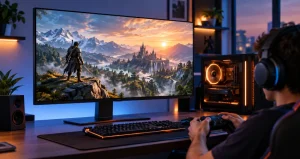
Building your first gaming PC is exciting, but choosing the monitor can be surprisingly difficult. Graphics cards, processors, memory, and storage usually receive most of the attention, yet the monitor is the part of the system you actually look at every second you play. A powerful PC connected to a slow or poorly matched display can make an otherwise capable gaming setup feel less impressive.
The good news is that new PC gamers no longer need an expensive display to get smooth gameplay. Affordable 1080p monitors now commonly reach high refresh rates, while 1440p gaming displays are becoming accessible to people building midrange systems. The important part is matching the monitor to your graphics card, the games you play, and the distance you sit from the screen.
Instead of simply choosing the monitor with the largest specification numbers, this guide takes a more practical approach. For most first-time PC gamers, the smartest purchase is the display their PC can drive comfortably for several years without paying for features they may rarely notice.
What New PC Gamers Should Look for in a Budget Monitor?
Refresh rate gets most of the attention, but it should not be your only consideration. Resolution, panel technology, screen size, adaptive refresh support, response performance, brightness, ports, and stand adjustment all affect everyday usability. A balanced monitor usually provides a better experience than one designed around a single impressive specification.
For a first gaming setup, a 23.8 to 25-inch 1080p display or a 27-inch 1440p display is usually the safest starting point. IPS panels are particularly attractive for beginners because they generally provide good viewing angles, useful color performance, and responsive motion without requiring much adjustment.
1080p or 1440p: Which Resolution Makes More Sense?
Resolution should be selected according to graphics performance rather than screen size alone. A 1920 x 1080 monitor requires fewer pixels to be rendered, making it easier for entry-level and mainstream graphics cards to produce high frame rates. That makes 1080p especially suitable for competitive games and affordable PC builds.
You May Like: Best Portable Monitors For Gaming On The Go
A 2560 x 1440 monitor displays substantially more image information and usually looks noticeably sharper at 27 inches. However, rendering games at 1440p requires more GPU performance. If your new PC contains a capable midrange graphics card and you plan to keep the monitor through a future GPU upgrade, 1440p can provide better long-term value.
AOC 24G4X: Strong 1080p Choice for Most Beginners
The AOC 24G4X is a particularly balanced example of what an affordable modern gaming display can offer. It uses a 23.8-inch Fast IPS panel with 1920 x 1080 resolution and a maximum refresh rate of 180Hz. It also supports adaptive refresh technology, helping the monitor stay synchronized with changing frame rates.
Its size is well matched to 1080p. At approximately 24 inches, individual pixels are less noticeable than they would be on a much larger 1080p display. Another useful advantage is its adjustable stand. Height adjustment can sound like a minor feature when shopping online, but it becomes important when the monitor is used for several hours at a desk.
This type of display makes sense for gamers who play fast multiplayer titles but also want good everyday image quality for browsing, videos, studying, or general PC use.
You May Like: Dual-Monitor Setups That Boost Your Workflow
MSI G244F E2: Excellent for a Performance-Focused 1080p Setup
The MSI G244F E2 is another compelling 23.8-inch Full HD option. It combines a Rapid IPS panel with a 180Hz refresh rate and adaptive refresh support. DisplayPort and HDMI connectivity make it straightforward to connect modern desktop graphics cards and other devices.
Its biggest appeal is simplicity. You are getting the core specifications that matter for smooth PC gaming without moving into a premium price category. A 180Hz panel can display a new frame approximately every 5.6 milliseconds when running at its maximum refresh rate, making motion feel considerably smoother than a traditional 60Hz screen when the computer produces enough frames.
This monitor is especially sensible for players building around an affordable GPU and prioritizing responsive 1080p performance over additional resolution.
Dell G2725D: A Practical Step into 1440p Gaming
For gamers with stronger graphics hardware, the Dell G2725D represents the increasingly attractive 27-inch 1440p category. Its 2560 x 1440 resolution produces a pixel density of roughly 109 pixels per inch, which gives games, desktop applications, and text a noticeably sharper appearance than 1080p on a similar-sized screen.
The display supports refresh rates up to 180Hz through DisplayPort and includes adaptive refresh support. Its combination of 1440p resolution and high refresh capability creates a useful middle ground between basic Full HD monitors and considerably more demanding 4K gaming displays.
One limitation is stand flexibility, so buyers who care about height adjustment should consider whether they will use a monitor arm or separate VESA-compatible stand. This is a good example of why purchasing decisions should consider everyday ergonomics rather than panel specifications alone.
AOC Q27G3XMN: For Gamers Who Value Picture Quality
The AOC Q27G3XMN takes a different approach from ordinary budget IPS monitors. It is a 27-inch 2560 x 1440 display with a refresh rate of up to 180Hz and uses Mini LED backlighting with local dimming. This allows it to produce stronger contrast and brighter highlights than many conventional entry-level gaming displays.
The tradeoff is that its VA-based panel behaves differently from typical IPS options. Dark transitions can sometimes show more visible trailing in motion. Gamers who mainly play visually rich single-player titles may appreciate the stronger contrast, while players focused almost entirely on extremely fast competitive games may prefer the motion characteristics of a responsive IPS display.
This illustrates an important buying lesson: the highest-performing monitor depends on what you actually play. Picture quality and motion performance do not always improve equally.
Why 144Hz to 180Hz Is the Sweet Spot for New Gamers?
A first-time PC gamer does not necessarily need an extremely high refresh monitor. Moving from 60Hz to 144Hz or 180Hz creates a very noticeable improvement in motion smoothness and desktop responsiveness. Beyond that level, improvements continue, but stronger hardware is required to take full advantage of them.
For a balanced PC build, 144Hz to 180Hz leaves enough room for high frame-rate gaming without forcing you to sacrifice resolution, panel quality, ergonomics, or GPU budget just to chase one specification.
Do Not Ignore Adaptive Refresh Technology
Frame rates constantly change as game scenes become easier or harder for the graphics card to render. Adaptive refresh technologies allow compatible monitors to adjust their refresh behavior alongside the GPU. This can reduce visible tearing and make fluctuating frame rates appear smoother.
For new PC gamers, adaptive refresh support can be more useful than chasing extremely high maximum refresh rates. It helps the monitor handle real gameplay conditions rather than only ideal benchmark situations.
A Better Way to Choose: Start With Your Graphics Card
My recommended decision process is GPU-first rather than monitor-first. Start by estimating the resolution and frame rates your graphics card can realistically deliver in the games you plan to play. Then choose a display that gives the GPU enough performance headroom.
An entry-level gaming PC is usually better paired with a quality 1080p high-refresh IPS monitor than an inexpensive 1440p display that forces the graphics card to struggle. A stronger midrange system, however, can benefit greatly from 1440p because the additional sharpness is visible during both gaming and everyday desktop use.
Monitor Features You Can Usually Skip on a Tight Budget
New gamers sometimes spend extra money on specifications that have little impact on their actual experience. Decorative lighting, unusually aggressive screen curvature on smaller panels, integrated speakers, elaborate styling, and basic HDR labels should not take priority over panel quality, resolution, motion performance, adaptive refresh support, connectivity, and stand ergonomics.
HDR is particularly worth examining carefully. A monitor can accept an HDR signal without having the brightness, contrast control, or local dimming capability required to produce a dramatic HDR image. If HDR quality matters to you, look beyond the logo and examine the display hardware itself.
Practical Buying Checklist
Before ordering a monitor, confirm its native resolution, maximum refresh rate, available ports, adaptive refresh support, VESA mounting compatibility, stand adjustment, screen size, and warranty terms. Also check whether the included DisplayPort or HDMI connection supports the monitor’s maximum refresh rate. Once installed, remember to change the refresh rate in your operating system because a high-refresh monitor may not automatically run at its maximum setting.
Frequently Asked Questions
1. What is the best monitor size for a new PC gamer?
For 1080p gaming, around 24 inches is usually the most balanced choice because it maintains reasonable pixel density while fitting comfortably on most desks. For 1440p, 27 inches is an excellent match because the higher resolution produces noticeably sharper images without making interface elements excessively small.
2. Is 1080p still good for PC gaming?
Yes. Full HD remains extremely practical, particularly for affordable gaming PCs and competitive titles. Because the graphics card renders fewer pixels than at 1440p or 4K, reaching high frame rates is easier. A quality 1080p high-refresh monitor can therefore provide an excellent gaming experience.
3. Is 1440p worth the extra cost?
It can be worthwhile when your graphics card has enough performance. The increased resolution makes games, text, and desktop applications look sharper, particularly on a 27-inch screen. It can also extend the useful life of the monitor because you may continue using it after upgrading your graphics card.
4. Is 180Hz noticeably better than 60Hz?
Yes. The difference between 60Hz and 180Hz is easy to notice during fast camera movement, mouse movement, scrolling, and high-frame-rate gameplay. The improvement is most meaningful when your computer can consistently generate frame rates high enough to make use of the faster display.
5. Do I need a 240Hz monitor as a beginner?
Usually not. A 240Hz monitor can be valuable for highly competitive players with hardware capable of producing very high frame rates, but 144Hz to 180Hz provides an excellent balance for most new gamers. Money saved can often be used more effectively on the graphics card, processor, storage, or a better-quality panel.
6. Is IPS better than VA for gaming?
Neither panel type is universally superior. IPS displays generally provide strong viewing angles and responsive motion, making them easy recommendations for mixed gaming. VA panels usually produce higher native contrast, which can improve dark scenes, although some models may show slower dark-pixel transitions. The implementation matters as much as the panel label.
7. Should I buy a curved gaming monitor?
A curved screen is mostly a preference rather than a requirement. Curvature can feel immersive on large or ultrawide displays, but it provides less benefit on a typical 24-inch screen. New PC gamers on limited budgets should prioritize panel performance, resolution, refresh rate, and ergonomics first.
8. Does a gaming monitor need HDR?
No. Good HDR depends on hardware capable of producing strong contrast, meaningful brightness, and controlled highlights. Many affordable displays can process an HDR signal without delivering a major visual improvement. A strong SDR gaming monitor is often a better purchase than a weaker monitor selected mainly because it carries an HDR label.
9. Should I use HDMI or DisplayPort for PC gaming?
DisplayPort is often the simplest connection for desktop gaming PCs, particularly when trying to use high refresh rates and adaptive refresh features. However, modern HDMI connections can also support high refresh rates. Always check the specifications of both the monitor and graphics card because capabilities vary by version and model.
10. How can I make sure my new monitor is running correctly?
After connecting it, open your operating system’s display settings and verify that the monitor is running at its native resolution and highest supported refresh rate. Enable adaptive refresh where supported, select an appropriate response-time mode in the monitor menu, and avoid immediately choosing the strongest overdrive setting because excessive overdrive can create visible artifacts.
Conclusion
The best budget monitor for a new PC gamer is not necessarily the model with the largest screen or highest number printed on the box. A well-matched monitor should complement the performance of your graphics card while providing smooth motion, useful adaptive refresh support, comfortable ergonomics, and appropriate resolution.
For entry-level systems, a 24-inch 1080p monitor around 144Hz to 180Hz remains one of the smartest starting points. Gamers with stronger hardware should consider a 27-inch 1440p high-refresh display for additional sharpness and longer-term usefulness. Choose according to the PC you actually have, and your monitor can remain a valuable part of the setup through several future upgrades.