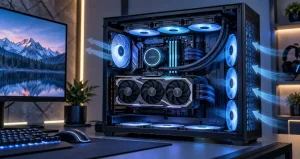
A gaming PC can have a capable processor and graphics card yet still feel less responsive than expected when memory becomes a limitation. Sudden stutters, slow transitions between games and other applications, delayed texture loading, or heavy disk activity can sometimes point toward insufficient RAM. Upgrading memory is therefore one of the first improvements worth investigating when a system begins struggling with modern games and multitasking.
However, installing more RAM does not automatically produce a dramatic increase in frame rates. Memory capacity, channel configuration, frequency, latency, motherboard compatibility, and the demands of individual games all influence the result. The most useful upgrade is the one that removes an actual system bottleneck rather than simply increasing a specification number.
This guide explains how to evaluate your current memory, choose an appropriate capacity, avoid common compatibility problems, and configure new RAM correctly. The goal is smoother gameplay and a more balanced gaming PC rather than chasing specifications that may provide little practical benefit.
How RAM Affects Gaming Performance?
RAM acts as high-speed working space for data that the processor needs quickly. While a game is running, memory can contain game assets, operating-system processes, application data, background services, and information being prepared for the CPU or graphics subsystem. Having enough available memory helps the computer keep frequently required data accessible without constantly moving it between RAM and slower storage.
When physical memory becomes heavily occupied, the operating system may rely more extensively on a page file stored on an SSD or other drive. Modern NVMe storage is fast, but it remains much slower than system memory for this purpose. The result can be inconsistent frame delivery, pauses when changing areas, slower application switching, and general responsiveness problems.
RAM Capacity Is Usually More Important Than Extreme Speed
For most gamers considering an upgrade, capacity deserves attention before very high memory frequencies. A fast 8 GB configuration can still encounter problems if a game and background applications need more than the available memory. Increasing capacity can remove that limitation completely.
You May Like: Smart Storage Upgrades For Console Gamers
For a basic gaming system, 16 GB remains workable for many titles when unnecessary background software is kept under control. A 32 GB configuration provides considerably more breathing room for newer games, browsers, launchers, communication applications, recording tools, and everyday multitasking. It is also a practical target for someone building or upgrading a gaming PC intended to remain useful for several years.
Moving from 32 GB to 64 GB usually makes sense when the computer also handles memory-intensive workloads such as professional content creation, large development projects, virtual machines, heavy modification packages, or demanding productivity software. Capacity beyond what the system actually uses generally does not make a game proportionally faster.
Look at Memory Usage Before Buying Anything
A useful upgrade begins with measurement. Run one of the games that gives you trouble and keep your normal background applications open. Then check memory usage through Windows Task Manager or another reliable monitoring utility. Observe usage during actual gameplay rather than immediately after launching the game.
If total memory usage regularly approaches the available capacity while stuttering occurs, additional RAM may provide a noticeable improvement. If only half of your memory is being used, simply doubling the capacity is unlikely to solve the problem. In that situation, CPU load, GPU load, VRAM consumption, storage activity, temperatures, drivers, or game settings deserve investigation.
You May Like: Power Supplies That Keep Your Rig Stable
This diagnostic-first approach prevents an expensive mistake: replacing a component simply because it is easy to upgrade rather than because it is causing the performance problem.
Why Dual-Channel Memory Matters?
Memory configuration can matter almost as much as total capacity. Desktop processors commonly provide multiple memory channels, allowing compatible modules to transfer data through more than one channel simultaneously. A properly configured pair of modules can therefore provide greater available memory bandwidth than a comparable single-module setup.
For example, when the platform supports it, two matching 8 GB modules are generally preferable to a single 16 GB module for a 16 GB gaming configuration. Similarly, two 16 GB modules are a sensible way to build a 32 GB system.
The correct slots also matter. Motherboards commonly recommend specific slots when two modules are installed. Consult the motherboard manual rather than assuming that any two sockets produce the same configuration.
DDR4 and DDR5 Are Not Interchangeable
Before purchasing RAM, determine which memory generation your system supports. DDR4 modules cannot simply be installed in DDR5 slots, and DDR5 modules cannot be installed in DDR4 slots. Their electrical requirements and physical designs differ.
A motherboard is built for a particular memory standard, so RAM generation is determined primarily by platform compatibility rather than personal preference. If you already own a DDR4 motherboard, replacing your existing memory with DDR5 would normally require changing the motherboard and potentially other platform components. For an ordinary memory upgrade, staying with the RAM standard supported by the existing system is the practical choice.
Memory Speed and Latency Still Matter
Once sufficient capacity has been selected, frequency and latency become useful considerations. Faster memory can increase bandwidth, while tighter timings can reduce certain memory-access delays. Some CPU-limited games respond more strongly to memory performance than heavily GPU-limited titles.
That does not mean the highest advertised frequency is automatically the best purchase. The processor’s memory controller, motherboard design, BIOS version, number of installed modules, and memory kit all affect achievable speeds. High-frequency memory that requires extensive tuning or runs unstably can provide a worse overall experience than a slightly slower configuration that operates reliably.
Do Not Forget XMP or EXPO Profiles
Performance memory kits may initially operate at standardized default settings rather than their advertised profile speed. Compatible Intel-oriented systems may provide XMP profiles, while compatible AMD DDR5 platforms may provide EXPO profiles. These settings are normally enabled through the motherboard BIOS.
Enabling a supported profile can automatically apply predefined memory frequency, timing, and voltage settings. However, these profiles involve memory operation beyond standard baseline specifications, so stability and compatibility should still be checked. After changing memory settings, confirm that the system boots normally and remains stable during games and memory-intensive workloads.
Check Motherboard and CPU Compatibility Before Upgrading
A RAM kit should never be chosen from capacity and speed alone. Check the motherboard’s supported memory generation, maximum capacity, slot configuration, BIOS support, and documented frequency capabilities. It can also be useful to consult the motherboard manufacturer’s qualified memory list when available.
CPU support matters as well because the memory controller is integrated into modern processors. Very aggressive memory settings may be more difficult to maintain with four populated DIMM slots than with two modules. For a fresh 32 GB configuration, a matched 2 x 16 GB kit is often simpler to configure than assembling the same capacity from four separate modules.
Avoid Mixing Unmatched RAM When Possible
Adding another module that appears to have the same capacity and frequency is not always equivalent to buying a matched kit. Different memory revisions may use different chips, subtimings, or electrical characteristics even when their labels appear similar.
Mixed modules can sometimes work correctly, but the motherboard may reduce frequency or loosen timings to maintain stability. In less cooperative combinations, users can encounter crashes, failure to boot, or memory-training problems. A matched kit tested and sold together is the safer approach when reliability is the priority.
How to Upgrade RAM Safely?
Before installation, shut the computer down completely, disconnect external power, and follow sensible anti-static precautions. Open the memory-slot retaining clips as required by the motherboard, align the module notch correctly, and apply even pressure until the module is fully seated.
After installation, enter the BIOS or operating system and confirm that the full capacity has been detected. Check the reported memory speed, enable the appropriate supported profile if desired, and test the system before assuming the upgrade is complete. If crashes begin immediately after the change, return memory settings to default and troubleshoot the configuration before attempting higher speeds.
What Improvement Should You Realistically Expect?
The biggest improvement normally occurs when the previous configuration was actually limiting the system. Moving from insufficient RAM to adequate capacity can reduce disruptive storage swapping and make multitasking considerably smoother. Correcting a single-channel configuration can also improve memory bandwidth on systems that benefit from it.
By contrast, increasing already sufficient capacity may barely change average frame rates. This is why RAM upgrades should be judged by frame consistency, minimum performance, responsiveness, and reduced stuttering as well as average FPS. Smooth gameplay is about consistent delivery of frames, not simply producing the largest average number.
Frequently Asked Questions
1. How much RAM is recommended for a modern gaming PC?
For many gaming systems, 16 GB can still provide a functional experience, but 32 GB offers more comfortable headroom for newer games and background applications. Players who frequently keep browsers, voice applications, launchers, recording utilities, or other programs open while gaming may particularly benefit from 32 GB.
2. Will upgrading from 16 GB to 32 GB increase FPS?
It depends on whether 16 GB is limiting the workload. If a game already operates comfortably within available memory, average FPS may change very little. If memory is regularly exhausted, 32 GB can reduce paging, improve responsiveness, and potentially improve frame-time consistency.
3. Is 64 GB of RAM necessary for gaming?
Most gaming-only systems do not require 64 GB. It becomes more useful when gaming is combined with demanding creative software, virtual machines, extensive game modifications, professional workloads, or unusually heavy multitasking. Buying unused capacity provides little performance benefit.
4. Is two RAM sticks better than one?
On platforms supporting multiple memory channels, two appropriately installed modules can provide greater memory bandwidth than one comparable module. This can help certain games and CPU-sensitive workloads. Always use the slots recommended by the motherboard manufacturer.
5. Can I mix different RAM brands?
It may work, but matching only the advertised capacity and frequency does not guarantee compatibility. Different modules can contain different memory chips and subtimings. A matched kit is generally easier to configure and more predictable when system stability matters.
6. Does faster RAM always improve gaming performance?
No. Faster memory can help workloads that are sensitive to memory bandwidth or latency, but the improvement varies with the processor, game engine, graphics settings, and GPU limitation. Adequate capacity and stable operation should normally come before extreme memory speed.
7. Should I enable XMP or EXPO after installing new RAM?
If your processor, motherboard, and memory kit support the relevant profile, enabling it can allow the RAM to use its configured performance settings instead of conservative defaults. Because compatibility varies, test stability afterward and return to default settings if problems occur.
8. Can RAM fix game stuttering?
It can when insufficient capacity or poor memory configuration is the cause. Stuttering can also result from GPU limitations, exhausted VRAM, CPU bottlenecks, shader compilation, storage activity, thermal throttling, drivers, or game-specific issues. Memory usage should therefore be measured before assuming RAM is responsible.
9. Should I use two or four RAM modules?
Two modules are often the simpler choice for a typical gaming upgrade because they leave additional slots available and can place less electrical load on the memory controller. Four modules can work perfectly well, but achieving very high memory frequencies may sometimes become more difficult.
10. What should I check before purchasing gaming RAM?
Confirm the required DDR generation, desired capacity, motherboard capacity limits, supported module configuration, CPU compatibility, available DIMM slots, profile support, and reasonable memory speed for your platform. Checking the motherboard manual and compatibility documentation before ordering can prevent many upgrade problems.
Conclusion
Upgrading RAM can make gameplay noticeably smoother when memory capacity or configuration is holding the system back. The most sensible approach is to measure current usage first, choose enough capacity for your real workload, use a balanced multi-module configuration, and confirm compatibility before purchasing.
For many modern gaming PCs, a well-matched 32 GB setup provides an excellent combination of performance, multitasking headroom, and long-term practicality. More importantly, stable and correctly configured memory is far more valuable than impressive specifications that your system cannot reliably use.